

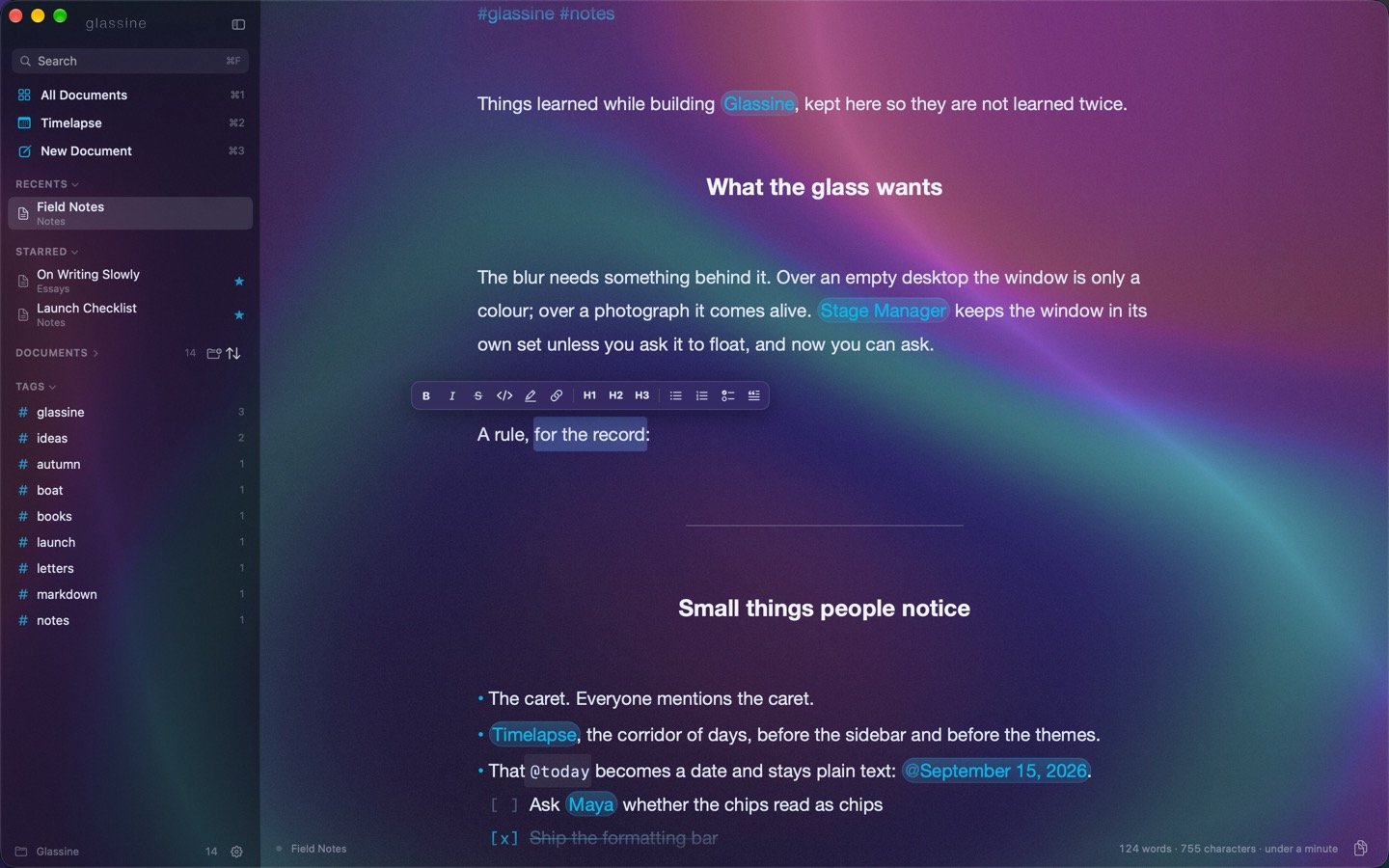
The bar over a selection
Select some text with the mouse and a small bar appears above it: B bold · I italic · S̶ strikethrough ·</> inline code · chip · link ·· H1 H2 H3 ·· bullet list · numbered list · task · quote
The first six wrap the selection in the right marks; the rest turn every paragraph the selection touches into that kind of line, so selecting three lines and pressing the bullet turns all three into a list, numbered lists count from wherever the list above left off, and pressing the same thing again turns them back into plain text. The selection stays where it was afterwards, so the bar can be used again.
A selection made with the keyboard shows the bar too, after a short pause, so shift-arrowing does not flicker. Esc dismisses it and collapses the selection; typing dismisses it. Each button shows its keyboard shortcut when you hover.
The slash menu
Type/ at the start of a line, or after a space, and a menu opens under the caret:
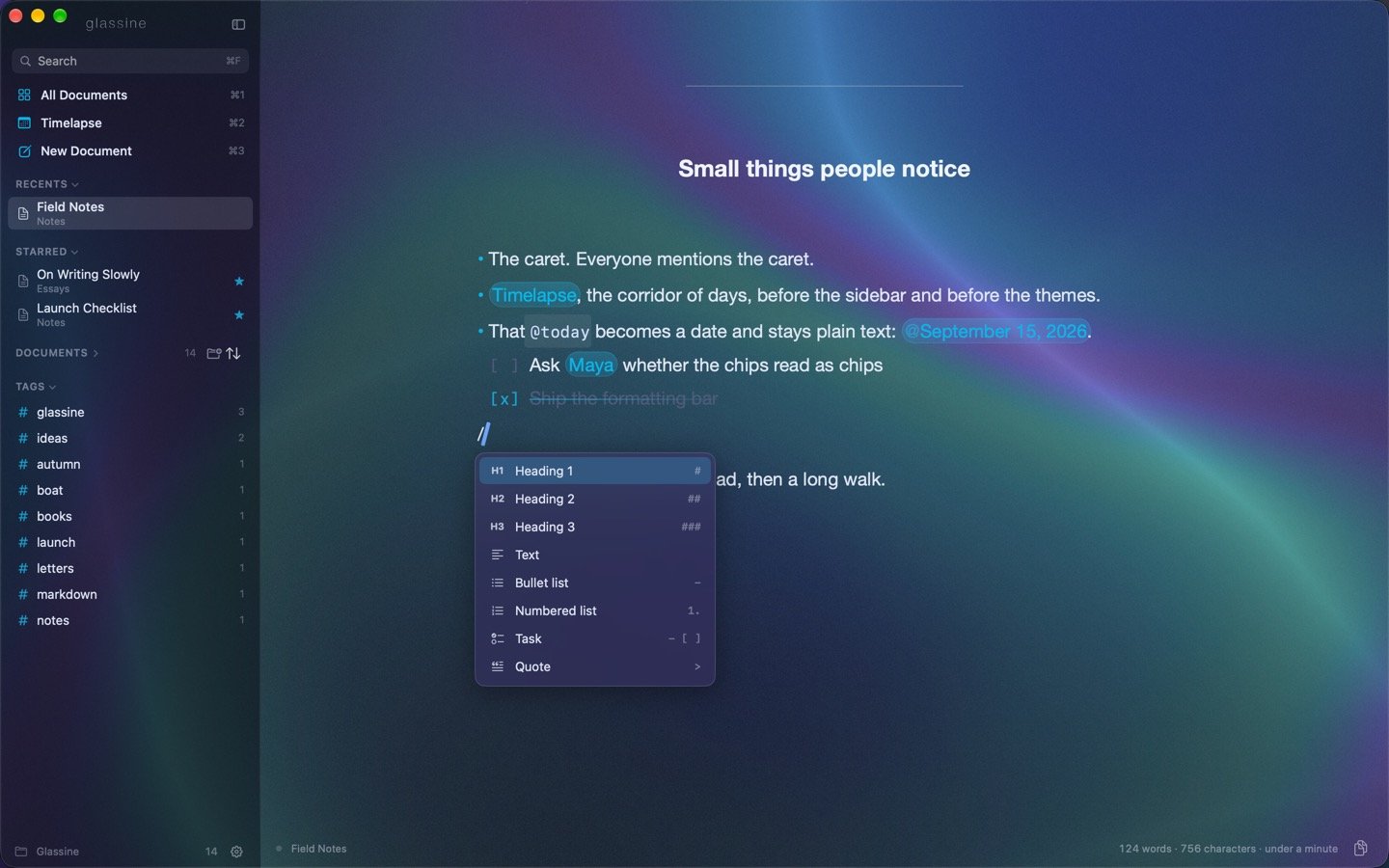
Keep typing to filter —
/h2, /task, /tom — and ↑ ↓ to move. Return or Tab takes the highlighted item and removes the slash and whatever you typed after it. Esc closes the menu and leaves the slash as a slash; so does typing something that matches nothing, so a / in ordinary prose gets out of the way on its own. A slash inside a word or an address (https://) never opens it.
Headings, lists and quotes from the menu act on the line the caret is in — /h1 on a line you have already started makes that line the heading. A code block or divider goes on a line of its own: in place of the current line if it is empty, otherwise on a new line after it.
Chips
A chip is a word or a few words in a capsule, drawn exactly like a date: the name of an app, a person, a place — anything you want to stand a little apart from the sentence around it. Select the words and press ⌘⇧H, or use the chip in the bar, or type/chip. In the file it is ==Glassine==, the highlight syntax that Obsidian, Bear, iA Writer and most other Markdown editors understand, so the words stay readable anywhere; Review draws the capsule too, and so does the PDF. Pressing ⌘⇧H with the caret between the marks removes them.
Hiding the Markdown
Settings → Type → Hide Markdown syntax, or ⌃⌘M, or View → Hide Markdown Syntax. The marks leave the page and the styling stays:**bold** reads as bold, # Title as a title, a link as its words, a chip as its capsule; bullets are drawn as bullets, and a task’s - steps aside so its box is the marker. Code fences, horizontal rules and #tags stay as they are.
The sentence your caret is in is the exception: it shows every mark, so you can edit it as written, and it collapses again the moment you move on to the next sentence or another paragraph. A selection keeps its whole paragraph open. Nothing about the file changes — it is the same Markdown either way, and the shortcuts and the menu work the same.
The command bar (⌘K) lists Hide Markdown syntax or Show Markdown syntax, whichever applies.