

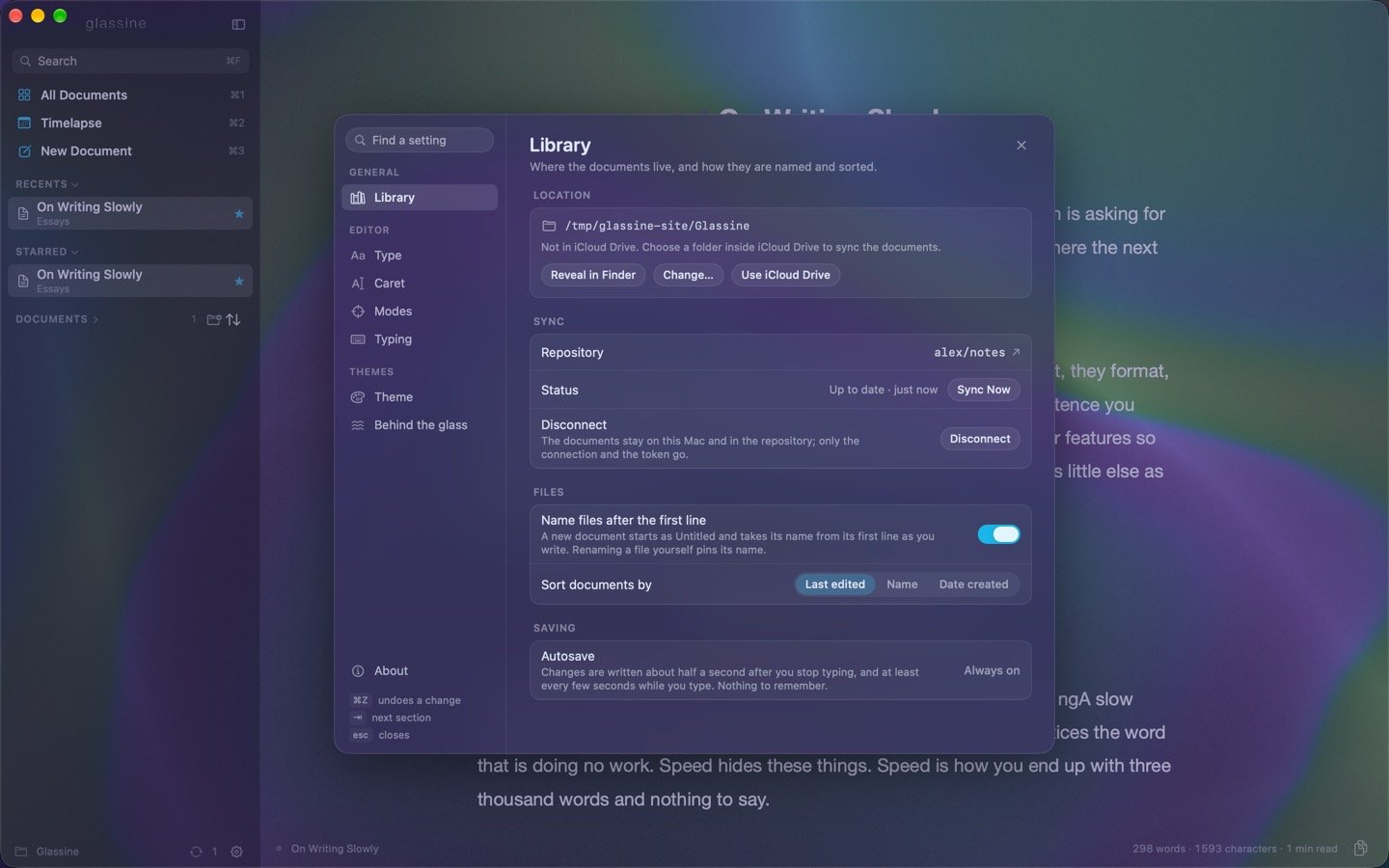
Whatever the mechanism, the documents themselves end up on the disk of any Mac you sync to. If that Mac is managed by an employer, what is on its disk is theirs to see; sync only decides what else is exposed. Some acceptable-use policies forbid personal files on work machines altogether — worth a look first.
What you need
A GitHub account (free is fine) and a private repository for the library. Glassine needs no git installed and runs no background process: it talks to GitHub’s API itself, and only when it has something to say.Connecting
Settings → Library → Sync → Connect….1
Make the repository
On github.com, New repository. Any name — notes, glassine-library — set to Private, and leave Add a README unchecked so it starts empty. (A repository that already holds a Glassine library works too: its documents come down to this Mac on the first round.) The New repository… button in the panel opens this page with the name filled in.
2
Make a token
On github.com, Settings → Developer settings → Personal access tokens → Fine-grained tokens → Generate new token. Name it after the Mac. Under Repository access choose Only select repositories and pick the one you just made. Under Permissions → Repository permissions set Contents to Read and write; nothing else. Set the expiration as you like (GitHub allows up to a year; when it runs out, Glassine says so and you make another). Generate, and copy the token — GitHub shows it once. The Make a token… button in the panel opens this page.
3
Connect
In the panel, enter the repository as owner/name —
alex/notes — paste the token, and press Connect. Glassine checks the repository, keeps the token in the keychain, and runs the first round: on the first Mac that pushes the library up; on the second it brings the library down.Sign in with GitHub — a code shown in Glassine, entered on github.com, no token to make or paste — appears in the panel once Glassine is registered with GitHub for it. Until then the token is the way.
How it syncs
A round runs a few seconds after each save, every half minute while Glassine is in front, when it comes to the front, and when you ask (Sync Now in the panel, Sync now in the ⌘K command bar, or a click on the arrows in the sidebar’s footer). A round reads the repository’s branch, compares it with the library and with what both agreed on last time, brings down what changed there, and pushes what changed here as one commit — “Glassine on Alex’s MacBook: edited Morning pages, added Ideas”. The document you are typing in is left alone until its save lands; a change to it from the other Mac arrives a moment later. Both Macs changed the same file between rounds — it happens when one was offline — and neither side is thrown away: this Mac keeps its version, and the other Mac’s is written beside it as Name (conflict).md (the way the editor already handles a file changed underneath it). Both go into the repository, so the other Mac sees both too. Read them, keep what you want, delete the rest. Deleted on one Mac means deleted on the other — moved to that Mac’s Trash, not erased, and still in the repository’s history. Offline, edits pile up here and go up the next time GitHub can be reached; the sidebar’s arrows turn orange, and the panel says how many changes are waiting.What goes up
The documents — every file the library lists — including the Shelf and anything in folders. Hidden files,.DS_Store, and files of other kinds in the folder stay where they are. The library’s settings, stars, recents and themes are the Mac’s own and are not synced.