

Today’s note
⌘D, ⌘3, or the Today row in the sidebar opens today’s note. If it does not exist yet it is created in a Daily folder at the top of the library (made on first use), named for the day —Friday, September 5, 2026.md — with that date as its heading. Press ⌘D tomorrow and you get tomorrow’s. The command is in the File menu, the ⌘K command bar and the sidebar’s Timelapse view.
A daily note keeps its date as its file name even if you change the heading; the usual name-from-the-first-line rule steps aside for it.
The corridor
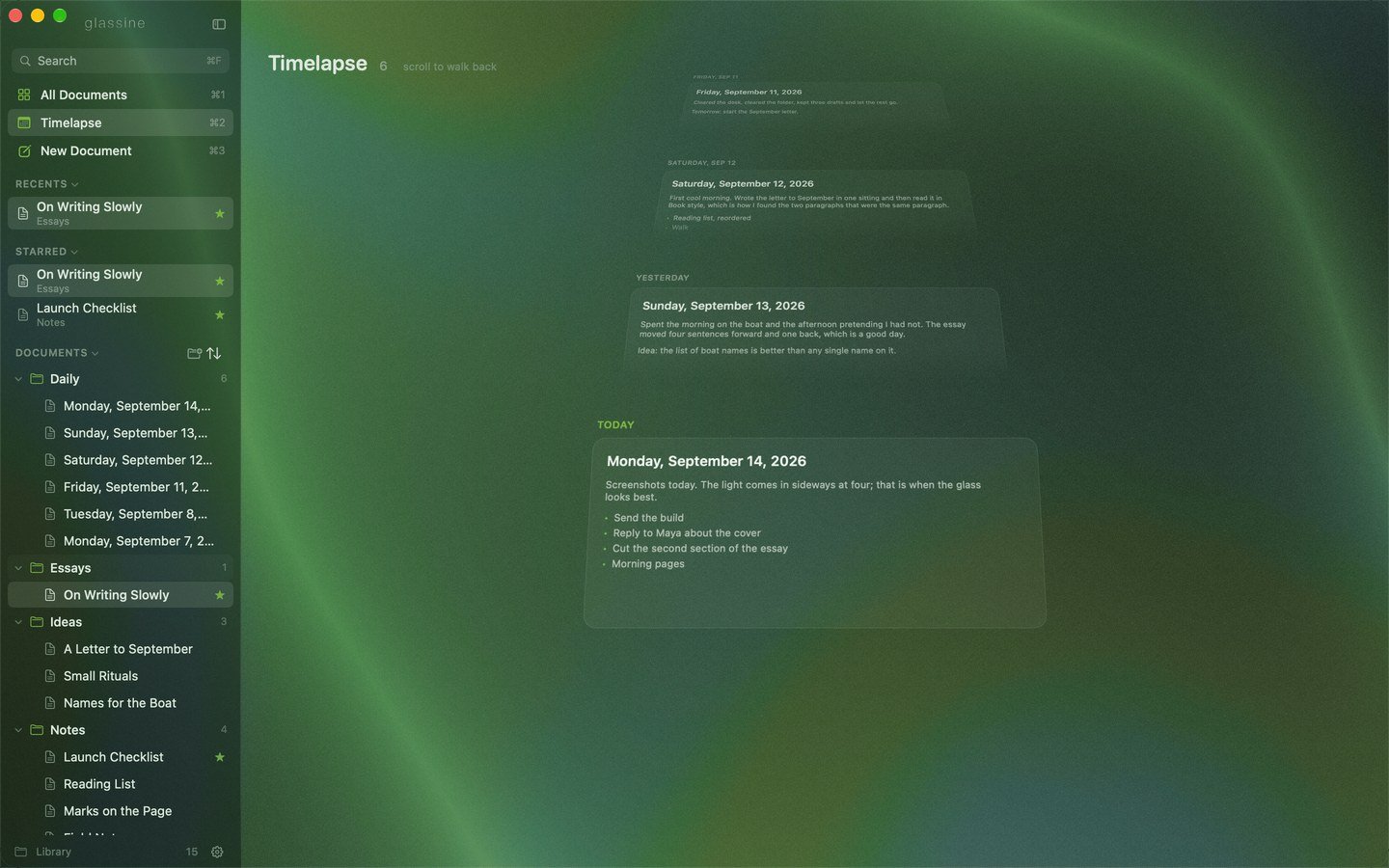
⌘2, or the Timelapse row in the sidebar. Today’s note lies flat and readable at the front, starting at the middle of the window and reaching into the lower half. Earlier days recede up the corridor behind it, each tilted further back, smaller and fainter than the last, toward a vanishing point below the header. Every day is the same size, whatever it holds — its first lines, on a plate the same height as every other — and each dissolves at its lower edge a little before it reaches the day in front of it, so the days sit close without ever touching. The label above each card says Today, Yesterday, or the day and date. Scroll to walk back through the days: scrolling up moves into the past, scrolling down comes back, and lifting your fingers settles on the nearest day. ↑ and ↓ do the same a day at a time. Click a card to open that note, or press ↩ for the day in front; Esc in that note brings you back here, to the corridor, rather than to All Documents. Esc in the corridor goes to All Documents — and Esc there comes back to the corridor, so the two overviews are a key apart. When there is no note for today yet, a dashed card at the front offers to start one.Everything, day by day
The pill in the header — or ⇥ — switches what a day holds. Daily notes is the corridor above: one note a day. Everything puts every document written that day in the day’s slot, the day’s note first and the rest by their last edit, in a row of up to four cards that recedes with the corridor like a single card does; a day with more than four ends in a +3 that opens the day’s wall. A document counts for the day it was made and the day it was last edited, so a page worked on over a week shows at both ends of it. The choice is kept between launches, and the ⌘K command bar switches it too.A day’s wall
The name above each day is a button: click it (or the +3) and All Documents narrows to that day — every document made or last edited then, the day’s note at the top, with a capsule beside the date to open the note or start it. The sidebar’s calendar opens the same wall for any day of any month. Esc clears the day; ⌘1 is always the whole library.What appears here
Only notes in the Daily folder whose names are dates. Anything else you put in that folder stays in the sidebar and out of the corridor, so a note that happens to live inDaily will not be mistaken for a day. And a new document never lands there by itself: ⌘N after writing in a day’s note makes the document at the top of the library, not in Daily.
The month in the sidebar
Under the sidebar’s top rows sits a calendar of the month, one cell a day, shaded by how much of that day’s note there is, with a dot under the days other documents were written on. Click a day for its wall; right-click for its note. It reads the same notes the corridor does. See the sidebar.With dates in the text
Date tokens are the other half of this:@today at the top of a note or beside a task gives you the same legible date inside the text, in plain Markdown any other app will read.